How to Childproof AI Apps on Android & iPhone: A Parent’s Safety Guide
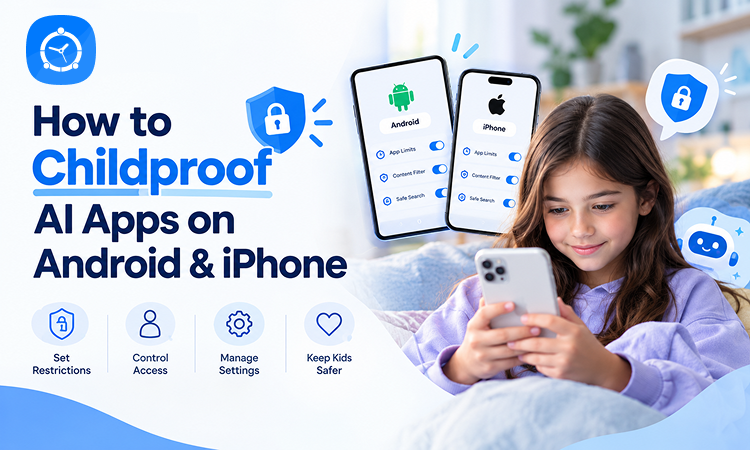
Artificial intelligence is becoming part of children’s everyday digital lives. From asking ChatGPT for homework help to creating images, chatting with AI characters, and exploring AI-powered search engines, kids are interacting with technology that can answer almost anything.
But here’s the question many parents are starting to ask:
Are AI apps really safe for children?
AI tools can support learning, creativity, and problem-solving. However, they can also expose children to inappropriate content, misleading information, privacy risks, and conversations that may not be suitable for their age.
The challenge is that AI apps don’t always behave like traditional websites or games. Instead of displaying fixed content, they generate responses based on what users ask.
That makes protecting children a little more complicated.
Fortunately, parents can take practical steps to make AI apps safer on both Android phones and iPhones.
In this guide, we’ll explain how to childproof AI apps, adjust privacy settings, manage access to AI chatbots, and establish healthier digital boundaries with tools such as FamilyTime.
Why Parents Need to Childproof AI Apps
AI is no longer limited to specialized technology platforms. It’s appearing in search engines, messaging apps, educational tools, social media, and smartphones.
Children may encounter AI through popular services such as:
- ChatGPT
- Google Gemini
- Microsoft Copilot
- Character.AI
- Snapchat’s My AI
- AI image generators
- AI-powered homework assistants
- AI features built into social media apps
Some tools are designed for general audiences, while others have specific minimum-age requirements or parental supervision options.
The problem isn’t that every AI app is dangerous. It’s that children may not always understand the limitations of artificial intelligence.
For example, an AI chatbot might provide an inaccurate answer with complete confidence. Another app might encourage extended conversations, while an AI image generator could create content that isn’t appropriate for younger users.
Childproofing AI apps means reducing these risks while helping children use AI responsibly.
What Are the Biggest AI App Risks for Kids?
Before changing phone settings, parents should understand what they’re trying to prevent.
1. Exposure to Inappropriate Content
AI chatbots generate responses dynamically, which means their answers can vary depending on the conversation.
Although many AI services have safety systems, those protections aren’t perfect.
Children may encounter mature discussions, disturbing topics, violent material, or inappropriate AI-generated images.
Some AI companion apps also simulate emotional or romantic relationships, creating additional concerns for younger users.
2. AI Can Provide Incorrect Information
AI tools can sound knowledgeable even when they’re wrong.
A child researching science, history, health, or school assignments may accept an AI-generated answer without checking whether it’s accurate.
Teach children that AI is a helpful assistant, not an unquestionable source of truth.
Important information should be checked against reliable educational resources or trusted adults.
3. Privacy and Personal Information Risks
Children may share information with chatbots without realizing where that information could go.
They might type their full name, home address, school, phone number, family details, passwords, or personal problems into an AI conversation.
Different services have different policies for storing, reviewing, and using conversations.
Parents should explain that personal information should never be entered into an unfamiliar AI tool.
4. Emotional Dependence on AI Chatbots
Some AI apps are designed to hold long, personalized conversations.
Children may begin treating these chatbots as close friends, emotional companions, or trusted advisers.
AI can simulate empathy, but it cannot replace meaningful human relationships or professional support.
Parents should pay particular attention to apps that encourage romantic roleplay, intense emotional attachment, or secrecy.
5. AI-Generated Deepfakes and Online Scams
Generative AI can create convincing fake images, videos, and voices.
Children may encounter manipulated content through social media, messaging apps, or AI image generators.
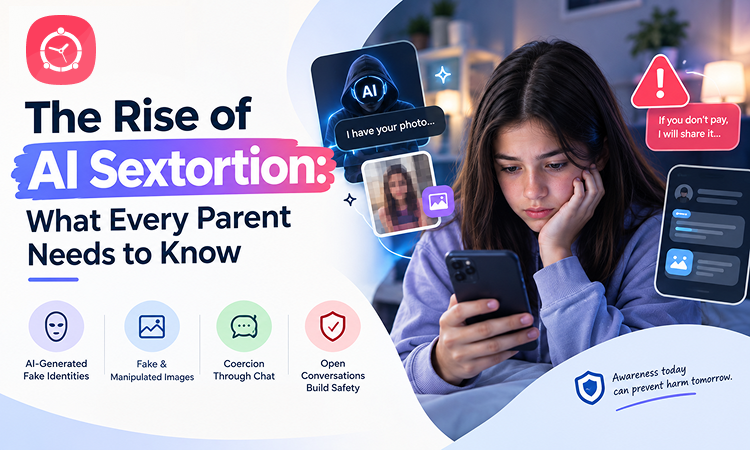
In more serious situations, AI-generated content can be misused for impersonation, harassment, or sextortion.
Teach children to question suspicious content and tell a trusted adult if someone threatens them with an image, video, or private information.
How to Childproof AI Apps on Android
Android provides several built-in tools for managing children’s access to apps and digital content.
The exact menu names may vary depending on the phone manufacturer and Android version.
Step 1: Set Up Google Family Link
Google Family Link helps parents supervise eligible child and teen Google accounts.
To get started:
- Install Google Family Link on the parent’s device.
- Create or connect your child’s supervised Google Account.
- Follow the instructions to link the child’s Android device.
- Review app permissions, download approvals, and available supervision settings.
- Set age-appropriate restrictions for your child’s device.
Family Link provides a useful starting point for managing app access.
However, it doesn’t guarantee that every AI-generated response will be appropriate.
Step 2: Restrict AI App Downloads
One of the simplest ways to reduce AI-related risks is to review which apps your child can install.
Within Google Family Link, parents can configure Google Play restrictions and app approval settings.
Consider requiring approval before your child installs new apps.
This allows you to examine an AI app’s age requirements, privacy policy, safety features, and purpose before allowing access.
Remember that some AI tools are accessible through websites without installing an app.
Step 3: Review Google Gemini Access
Google Gemini is integrated into parts of Google’s ecosystem.
Depending on your child’s age, account type, region, and Google’s current policies, supervised accounts may have access to certain Gemini experiences.
Parents should review the Gemini controls available through Family Link and Google’s account settings.
If Gemini access is available for your child’s account, check whether it can be enabled or disabled.
Also explain that Gemini can make mistakes and that children should avoid entering sensitive personal information.
Step 4: Configure SafeSearch and Web Restrictions
Google SafeSearch can help filter explicit results in Google Search.
For supervised accounts, parents can manage applicable Search settings through Family Link.
You should also review Chrome and website restrictions where supported.
These controls can reduce exposure to inappropriate websites, but they aren’t comprehensive AI chatbot filters.
An AI tool may operate inside an approved website or another app, so parents should evaluate individual services separately.
Step 5: Review Microphone, Camera, and Photo Permissions
Many AI apps request access to microphones, cameras, photos, or files.
Some permissions are necessary for features such as voice conversations or image analysis. Others may not be needed for your child’s intended use.
On Android, open:
Settings → Apps → Select the AI App → Permissions
Review access to the camera, microphone, location, photos, and other sensitive information.
Disable permissions that aren’t necessary.
How to Childproof AI Apps on iPhone
Apple provides built-in parental controls through Screen Time and Family Sharing.
These tools can help parents restrict app installations, manage content access, and establish screen time limits.
Step 1: Enable Screen Time for Your Child
If your child is part of your Apple Family Sharing group, you can manage their Screen Time settings from your own Apple device.
To begin:
- Open Settings on your iPhone.
- Go to Family and select your child’s account.
- Open Screen Time.
- Follow the instructions to configure parental controls.
- Set a Screen Time passcode where appropriate.
You can also configure Screen Time directly on the child’s device.
Step 2: Set Age-Appropriate App Restrictions
AI apps can have different age ratings.
On your child’s iPhone, go to:
Settings → Screen Time → Content & Privacy Restrictions
Enable the restrictions and review the available App Store, Media, Web, and Games settings.
Choose an appropriate app age rating for your child.
Keep in mind that app store ratings don’t necessarily reflect every type of conversation an AI chatbot can generate.
Step 3: Use Ask to Buy
Apple’s Ask to Buy feature allows eligible family members to request approval before downloading or purchasing apps.
Parents can use it to review AI apps before they’re installed.
Before approving an AI chatbot, consider:
- Is the app appropriate for my child’s age?
- Does it allow conversations with AI characters?
- Can it generate images or videos?
- Does it offer parental controls?
- How does it handle personal information?
- Can my child report inappropriate responses?
A few minutes of research before approving an app can prevent problems later.
Step 4: Restrict AI Websites in Safari
Blocking an AI app doesn’t necessarily prevent children from accessing its website.
On iPhone, parents can use Screen Time’s web content controls to limit access to websites.
Look for the Web Content options within Content & Privacy Restrictions.
Depending on your child’s needs, you can limit adult websites, add specific sites to the blocked list, or use an approved-websites-only approach.
This can be especially helpful for younger children.
However, web restrictions may not cover AI features embedded inside otherwise permitted apps.
Step 5: Review Apple Intelligence and Siri Settings
On compatible Apple devices, AI features may be integrated into the operating system.
Parents should review the available Apple Intelligence and Siri controls, including any ChatGPT-related restrictions supported by their child’s device and software version.
Apple’s settings and available parental controls can change with iOS updates.
Check the current Screen Time and Apple Intelligence options rather than assuming that restricting one AI app automatically disables all AI functionality.
Step 6: Limit AI App Permissions
On iPhone, go to:
Settings → Privacy & Security
Review access to the microphone, camera, photos, contacts, and location.
Remove permissions that aren’t necessary for your child’s use of the app.
You can also review permissions for individual apps in Settings.
How to Make Popular AI Chatbots Safer for Teens
Android and iPhone settings provide a foundation, but parents should also examine the safety features of individual AI platforms.
ChatGPT
ChatGPT can support research, writing, brainstorming, and learning.
However, parents should check its current minimum-age requirements before allowing a child to use it.
OpenAI generally requires users to be at least 13, or the applicable minimum age in their country, and users under 18 need parental permission.
Where available, parents can use ChatGPT’s parental controls to manage certain settings for linked teen accounts.
Parents should also encourage teens to verify important information and avoid sharing sensitive personal details.
Google Gemini
Gemini can help with explanations, writing, and educational questions.
Google offers age-dependent access and supervision features, which vary by account type and region.
Parents should review the available Gemini controls through their child’s Google Account and Family Link.
Character.AI
Character-based AI services deserve particular attention because they are built around simulated personalities and ongoing conversations.
Parents should check the service’s current age restrictions before permitting access. Character.AI discontinued open-ended chat for under-18 users in late 2025.
For younger children, consider avoiding AI companion experiences that aren’t explicitly designed for their age group.
Snapchat’s My AI
Some children encounter AI through social media rather than a dedicated AI app.
Snapchat’s My AI is one example.
Parents should review Snapchat’s Family Center and available My AI controls, while also checking Snapchat’s minimum-age requirements.
Remind children not to share private information with an AI chatbot simply because it appears inside a familiar messaging app.
How FamilyTime Can Help Parents Manage AI App Access
Built-in Android and iPhone controls are helpful, but parents may also want a parental control solution for managing their children’s broader digital habits.
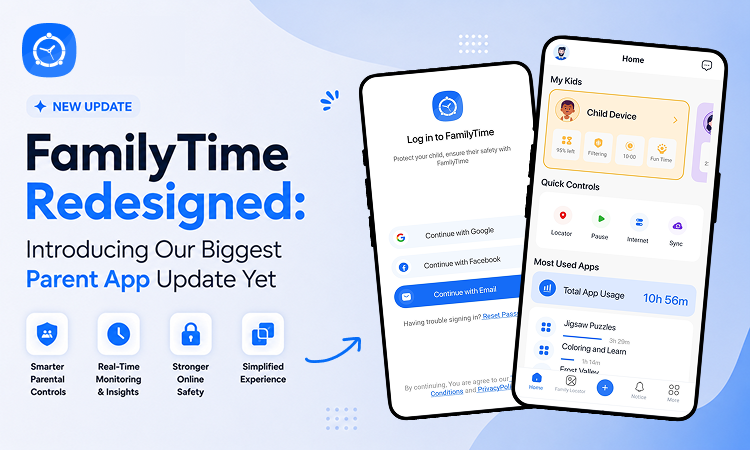
FamilyTime offers tools that can help parents establish boundaries around apps, websites, and screen time.
Restrict Inappropriate AI Apps
With FamilyTime’s App Blocker, parents can restrict access to supported apps they don’t want their children using.
This can be useful when an AI chatbot, AI companion, or image-generation app isn’t appropriate for a child’s age.
Manage Time Spent on AI Apps
Not every AI app needs to be blocked.
Some can support learning and creativity when used responsibly.
FamilyTime’s Daily App Limits can help parents manage how much time children spend on selected apps, where supported.
This can help prevent excessive use of AI chatbots or other digital services.
Establish Healthy Device Routines
FamilyTime’s Screen Time Schedule helps parents establish device-use boundaries around schoolwork, bedtime, meals, and family activities.
These routines can reduce late-night AI chatbot use and encourage a healthier balance between digital activities and offline life.
Restrict Inappropriate Websites
FamilyTime’s Web Blocker can help parents limit access to inappropriate websites.
Parents can use website restrictions alongside app controls to reduce access to AI services they consider unsuitable.
However, blocking a website or app doesn’t guarantee that every AI feature embedded in another service will be restricted.
Combine Parental Controls With Conversations
FamilyTime can support safer digital habits, but it cannot guarantee the accuracy or appropriateness of AI-generated conversations.
Parents should still review individual AI services, discuss privacy, and teach children how to recognize unreliable or uncomfortable responses.
The goal isn’t to prevent children from learning about AI. It’s to help them explore it within appropriate boundaries.
Create Simple Family Rules for AI Use
Technical restrictions work best when children understand the reasons behind them.
Instead of creating a long list of complicated rules, agree on a few basic expectations.
For example:
- Never share passwords, home addresses, school details, or private family information with AI.
- Ask permission before installing a new AI chatbot or image generator.
- Double-check important AI-generated answers.
- Never create or share harmful deepfake images of another person.
- Don’t treat an AI chatbot as a replacement for real-life relationships.
- Tell a trusted adult if an AI conversation becomes disturbing, inappropriate, or uncomfortable.
- Use AI to support learning rather than simply copying answers.
For teenagers, involve them in deciding which AI tools are useful and what boundaries are reasonable.
Should Parents Completely Block AI Apps?
Not necessarily.
AI can help children understand difficult subjects, practice writing, explore creative ideas, and learn new skills.
Blocking every AI tool may also be unrealistic as artificial intelligence becomes integrated into operating systems, search engines, and educational software.
A more practical approach is to match access to the child’s age, maturity, and needs.
For younger children, consider adult-guided AI activities using tools specifically intended for their age.
For older teenagers, supervised access to suitable AI services may be appropriate, combined with privacy education and clear expectations.
Parents should always respect individual platforms’ minimum-age requirements.
Common Mistakes Parents Make When Childproofing AI Apps
Even parents who actively manage their children’s devices can overlook important details.
Blocking only the app: A child may still be able to access the same AI service through a browser.
Assuming age ratings guarantee safety: An app’s age rating doesn’t mean every generated response has been individually reviewed.
Ignoring built-in AI features: AI may be available inside messaging apps, browsers, search engines, or the phone’s operating system.
Focusing only on screen time: A short AI conversation can still involve inappropriate content or sensitive information.
Never reviewing settings again: AI services frequently update their features, policies, and safety tools.
Reviewing settings periodically can help families adapt as technology changes.
Final Thoughts: Make AI Safer Without Limiting Learning
Artificial intelligence is becoming part of how children learn, communicate, and explore the internet.
Parents don’t need to become AI experts overnight. But they do need to understand the tools their children use and the risks those tools may introduce.
Start with the parental controls already available on Android and iPhone. Review app downloads, privacy permissions, age restrictions, website access, and AI-specific settings.
Then consider how parental control tools such as FamilyTime can help reinforce appropriate app access, screen time boundaries, and healthier digital routines.
Most importantly, keep talking to your children about AI.
Teach them to question AI-generated answers, protect their personal information, recognize manipulation, and ask for help when something doesn’t feel right.
The safest approach isn’t simply blocking AI. It’s teaching children how to use it responsibly, with the right safeguards in place.